Presentation Topic Generator: Random Topic Wheel
The presentation topic generator picks a subject for you when choosing one is the hardest part. Add the possible topics, spin, and let the wheel assign a subject at random. It is free, runs in your browser with no sign up, and works for classrooms assigning talks, students stuck on what to present, and teams drawing topics for a meeting. Spin once and you have a subject to start preparing.
How to use the presentation topic generator
Assigning a topic takes under a minute.
- Add your topics. Type the subjects or themes into the options panel, one per entry. Use broad subjects or specific prompts, whichever suits the task.
- Tune the list. Keep only topics that are fair for the group, so any result is one a presenter can reasonably prepare.
- Spin. Click the center button or press the spacebar. The wheel turns and lands on one topic.
- Assign it. Give that topic to the presenter. Turn on "remove after spin" if you are assigning different topics to several people.
What this tool does
The presentation topic generator takes the subjects you add and selects one at random per spin, shown on a spinning wheel. There is no limit on entries, so you can load a short list of themes or a long bank of prompts. With "remove after spin" on, each topic is drawn only once, which is what you want when assigning a different subject to every student in a class.
Each spin uses a fresh random rotation and stopping angle, so every topic of equal segment size has the same chance, and a result never depends on the spin before it. The value is fairness: when the wheel assigns the subject, no student can claim they got the hard topic on purpose, and the teacher does not have to defend who got what.
Key features
- Any topics you like. Broad subjects or specific prompts, as many as you need.
- Remove after spin. Assign a unique topic to each presenter with no repeats.
- Fair by design. Equal segments share equal odds, with no memory of past spins.
- Instant access. No account, no download, no app.
- Visible to the class. Everyone watches the same assignment on a shared screen.
- Works on any device. Run it on a classroom projector or a laptop.
Practical use cases
Classroom assignments
Load the subjects for a unit and spin to give each student a topic, so the allocation is visibly fair and nobody feels singled out.
Beating a blank page
When a student cannot decide what to present, add a few candidate themes and let the wheel commit them to one, breaking the deadlock.
Team meetings
Draw a discussion topic or a knowledge sharing subject for a stand up, so the agenda is set without one person always choosing.
Practice and clubs
Debate or public speaking clubs can spin for a surprise topic, giving members practice at thinking on their feet.
Tips for fair topic draws
A few habits keep the assignment fair and useful.
- Balance difficulty. Keep the topics roughly even in challenge, so no result is much harder than the rest.
- Use remove after spin for class sets. It guarantees each student gets a different subject with no repeats.
- Spin on a shared screen. Letting the class watch each draw is what makes the assignment feel fair.
- Allow a single reroll if needed. Decide in advance whether a presenter may re spin once, for example if they get a topic they already covered.
Limitations and considerations
The presentation topic generator assigns a subject at random, but it does not write the talk, judge whether a topic suits a grade level, or check that the list is balanced. You build a fair set of topics, and the wheel simply picks among them. Review the list first so every possible result is reasonable for the presenter.
The tool also keeps no record between sessions, so note who got which topic before you refresh. For a class where you want a guaranteed spread of subjects, "remove after spin" handles that within one session, but you will need to record the assignments yourself if you want them for later.
Frequently asked questions
Can I assign a different topic to each student?
Yes. Turn on "remove after spin" and each topic is taken off once drawn, so every student gets a unique subject with no repeats.
Is the pick really random?
Yes. Each spin uses a fresh random rotation and stopping angle, so every topic of equal segment size has the same chance and past spins do not affect the next.
Can I use my own topics?
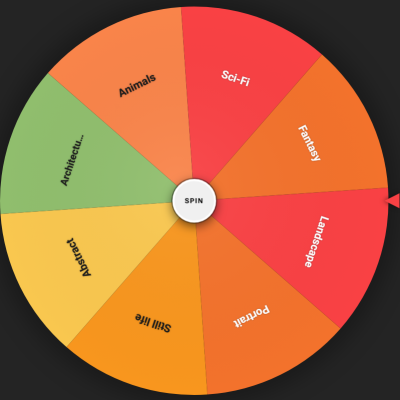
Yes. Replace the defaults in the options panel with any subjects or prompts you like, and the wheel resizes to fit them.
Do I need an account?
No. The generator runs in your browser with no sign up, no login, and no personal details required.
Conclusion
The presentation topic generator takes the hardest part of presenting, choosing the subject, off everyone's hands. Load a fair set of topics, turn on remove after spin for a whole class, and spin on a screen everyone can see. When a talk needs a topic and nobody can decide, add your subjects above and let the wheel assign one.
Related Wheels